DHIS2 Application Runtime Fetching
Getting data from the dataStore
Accessing data through from the dataStore is pretty straightforward. You can request and store any form of data from the dataStore by using the API.
- Full documentation of dataStore can be found here.
Creating a namespace
Before beginning this guide, make sure you've created a namespace for your group. You can do this by:
- https://data.research.dhis2.org/in5320/dhis-web-datastore/#/
- Click "new" on the top left corner, which will create a new namespace.
- Insert the required fields:
- Namespace field be called
IN5320-<Group number>(replaceIN5320-<Group number>with your actual group number). - Key name field should be "myfirstkey".
- Namespace field be called
- Click create. You should now see your namespace on the left of the page.
Retrieve namespaces
To begin with, let's use the API to retrieve all namespaces:
Loading API module...
Test query 1
Task
You should find the namespace which you created for your group in the response results. Otherwise, try creating the namespace again.
Retrieving keys and values
Inside each namespace there is a list of keys. Each of these key is associated with a value as illustrated below:
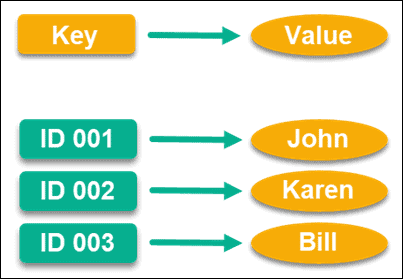
Let's find all keys currently stored in our namespace
Loading API module...
Test query 2
Task
Storing a key
Let's store a new key & value. Use the following parameters to store a key:
- The "namespace" should be the one which you've created previously
- The "key" can be any name (try naming it something which is understandable for others)
In addition, we'll also provide a body. This body is the "value" we want to store. So open the body tab of the tool write a json object. I.e:
{"name":"John","age":30,"car":null}
Loading API module...
Test query 3
Task
Check the response, if it's successful you've created a new key-value in your namespace.
Retrieving the stored key
Let's try finding the key that we stored just stored. Add the parameters:
- The "namespace" should be the one which you've created previously
- The "key" should be the key which you used when storing the key (in previous test query)
Loading API module...
Updating the stored key
Let's try updating the value of a key which we're already created. Add the parameters:
- The "namespace" should be the one which you've created previously
- The "key" should be the key which you used when storing the key (in previous test query)
- Finally, set the body to be different from what you used when storing the key
Loading API module...
Test query 4
In the response, you will see if the key was successfully updatedTask
Deleting the stored key
Finally, we will try to delete a stored key. You can simply do this by specifying the parameters as we've done previously for what namespace & key should be deleted.
Loading API module...