Submitting an app to the DHIS2 App Hub
Adding additional images to a submitted app
The submission process allowed us to upload the logo of our application, but uploading more screenshots and videos that showcase the app's features and functionality can often be very helpful in attracting new users. The more users you have, the more potentional feedback you have to improve your app. If you have submitted a link to the app code repository, you could have contributers from all over the world fixing issues and adding features 🔨.
Uploading images
We are going to need:
- Screenshots showcasing the app's features
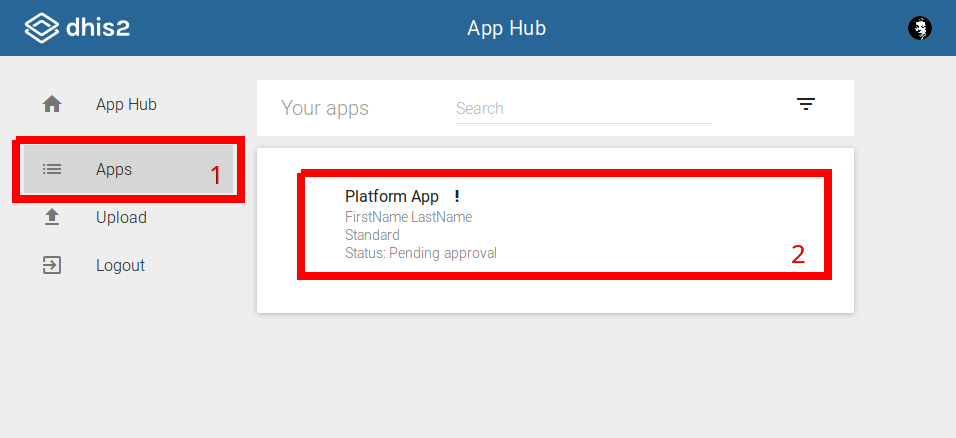
We are going to start by finding the app you we to add images to in the main Apps list and click it.
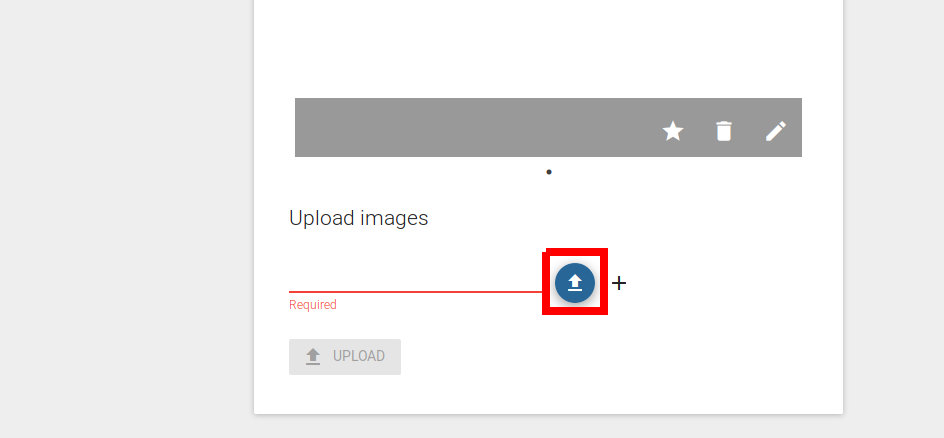
We then scroll down to the Upload images section, click the upload button and select the images we want to upload.
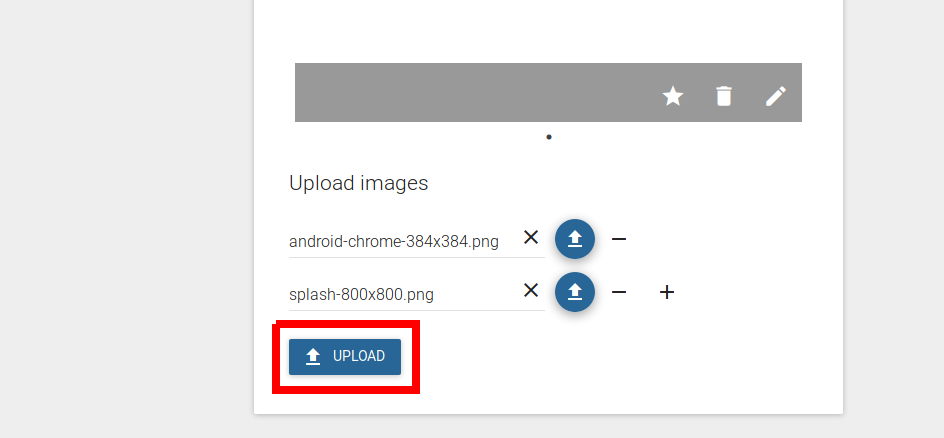
When we are satisfied with the images we have selected, we click the Upload button to submit our changes.
Adding captions and descriptions
Once we have uploaded our images, we should give them apropriate captions and descriptions.
We can do this in the section above the upload section. The image carousel can be used to select the image we want to edit.
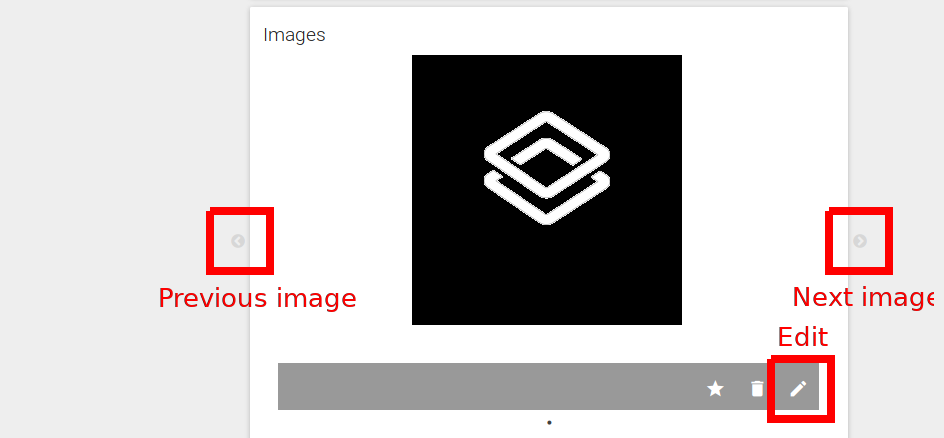
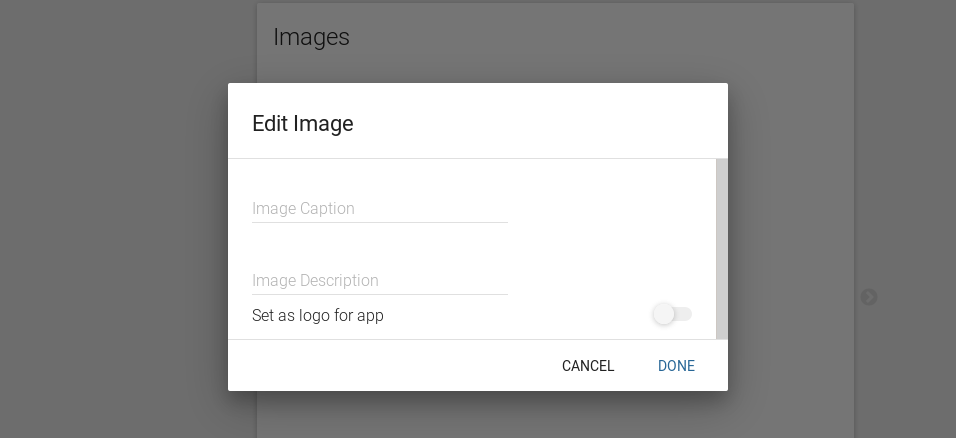
When we click the the edit button a modal shows up where we can specify the caption, description and whether to use the image as the logo of the app.