Getting started with DHIS2
Connecting to the DHIS2 instance
The DHIS2 instance we will be using in this course is:
https://data.research.dhis2.org/in5320/
You can log into this instance with the credentials:
Username: adminPassword: district
CORS (Cross-origin resource sharing)
Most browser restrict cross-origin resource sharing. When we develop a DHIS2 application locally we have to make requests to a third-party resource (the DHIS2 instance). Therefore we need to circumvent these browser restrictions.
The easiest way to do this is by using the dhis-portal tool.
This tool creates a proxy between localhost:9999 and the DHIS2 instance we want to connect to.
If you are having issues logging in to the server, CORS or mistyped credentials are the most likely cause.
DHIS Portal setup
Install the DHIS-portal command-line tool in your terminal with the following command. We are installing it globally so we can run it in several projects (and directly in our terminal).
yarn global add dhis-portal
Start the proxy by running the following command. This program should always be running when you are developing applications for DHIS2.
npx dhis-portal --target=https://data.research.dhis2.org/in5320/
You can test this by visiting localhost:9999 in your browser.
You should be redirected to https://data.research.dhis2.org/in5320/.
Logging in from your application
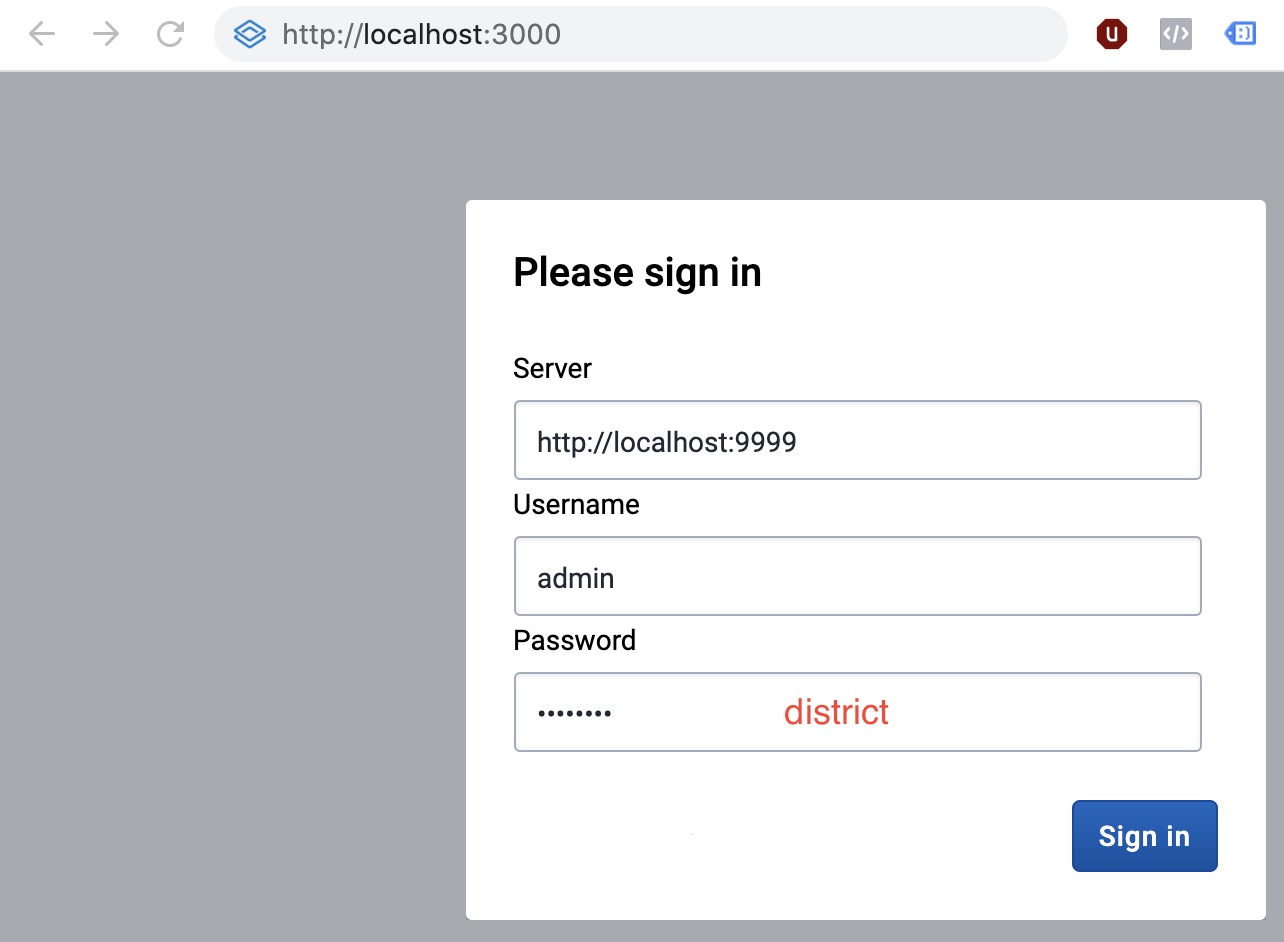
Now that you have installed and run the dhis-portal application you can log into the application you created earlier.
Make sure you are still running your application with yarn start and then visit localhost:3000.
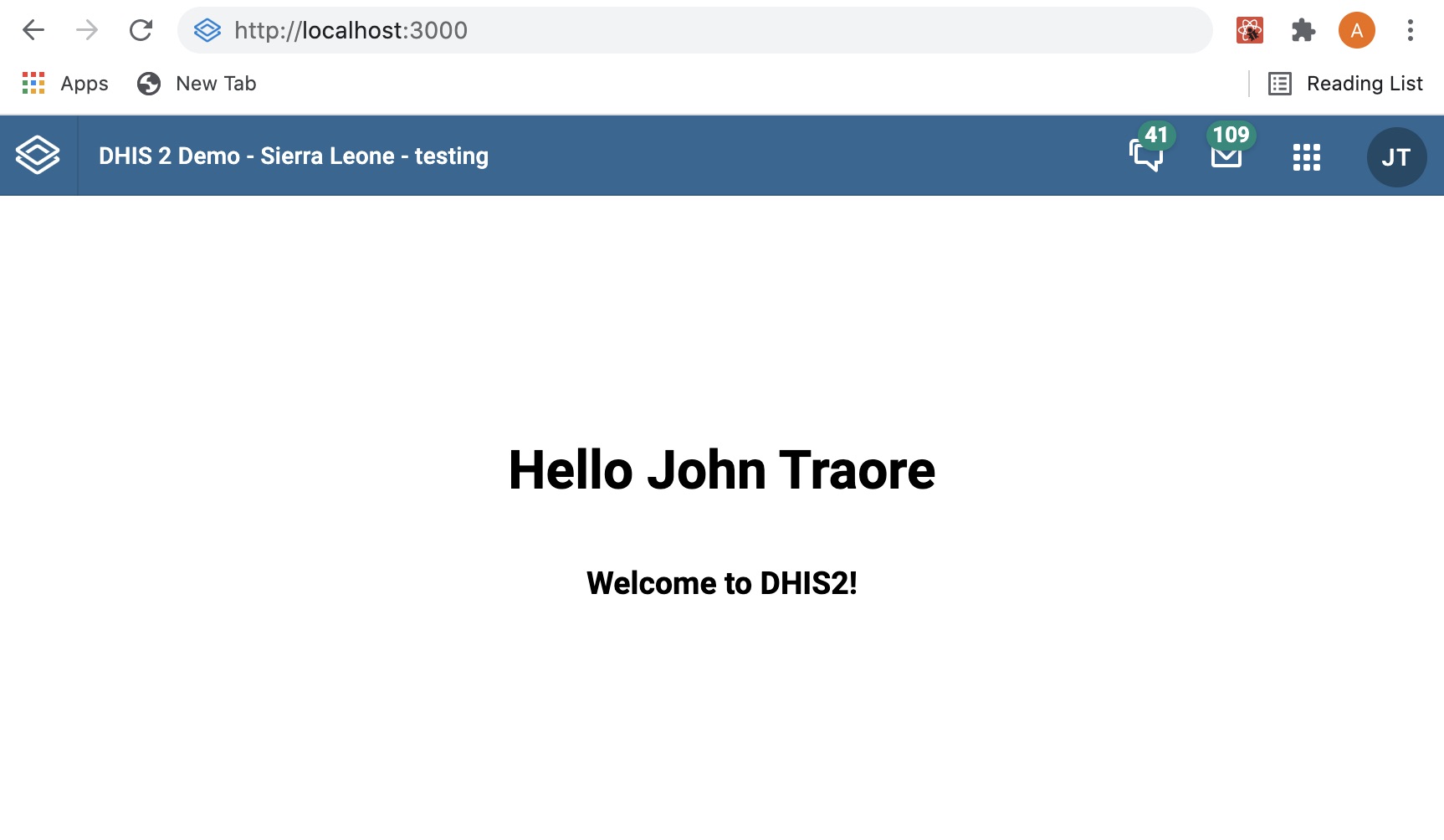
After you have logged in you should see this screen: