Fetching data
Accessing the API
Portal
npx dhis-portal --target=https://data.research.dhis2.org/in5320
In previous section we learned how the Data Model is structured. We learned how a DataValue is related to a DataElement, a OrganizationUnit and a Period.
In this section we will learn how to use the DHIS2 API to find DataElements, OrganizationUnit and Period available in the DHIS2 instance. We're looking for the following elements based on previous examples:
- the dataElement: Injectable Antibiotics
- the organisationUnit: Sierra Leone
- the Period: September 2022
These elements will be used when storing dataValues.
Before accessing the API, let's first recap the terminology of how API queries are structured:

Testing tool for using the API
There's several options on how to access the DHIS2 API. In this guide we'll use an API testing tool designed for interacting with the DHIS2 API (If you prefer other tools, use the API url: https://data.research.dhis2.org/in5320/api/) The API testing tool is used by simply filling out fields in a form. Below you will find a demonstration of the API testing tool together with a short description.
Test query 1
Loading API module...
Test query 1
In test query 1 shown above, you will find the following properties:
- The Verb is displayed on top of the tool ('GET' in this example). In this guide, you will not have to set the verb as we're doing it for you.
- The Path is displayed next to the verb ('/api/dataSets' in this example).
- For some endpoints, you need to change variables for setting the path
- The Query parameters can be set below
- Some parameters are optional. You can set these by opening the 'Show optional parameters' and set them.
- The Send button converts the request to an API query and sends it to the API
- The Export to code button converts the query to React Code is usable in React projects.
- The Body tab is for queries where you have to insert data to the API.
Task
If the request was successful, you should receive a response displayed below the request. In the response you will find:
- Request query showing the query sent by the tool
- Response code which is a code indicating whether request was successful.
- Body which is the response data from the API.
Before looking into the response body of test query 1, let's first consider why we did a request to the path /api/dataSets/. As previously mentioned, we're looking to find a dataElement in the API. dataElements are children of a dataSet. By accessing a dataSet, we can find dataElements which we will later use when storing dataValues.
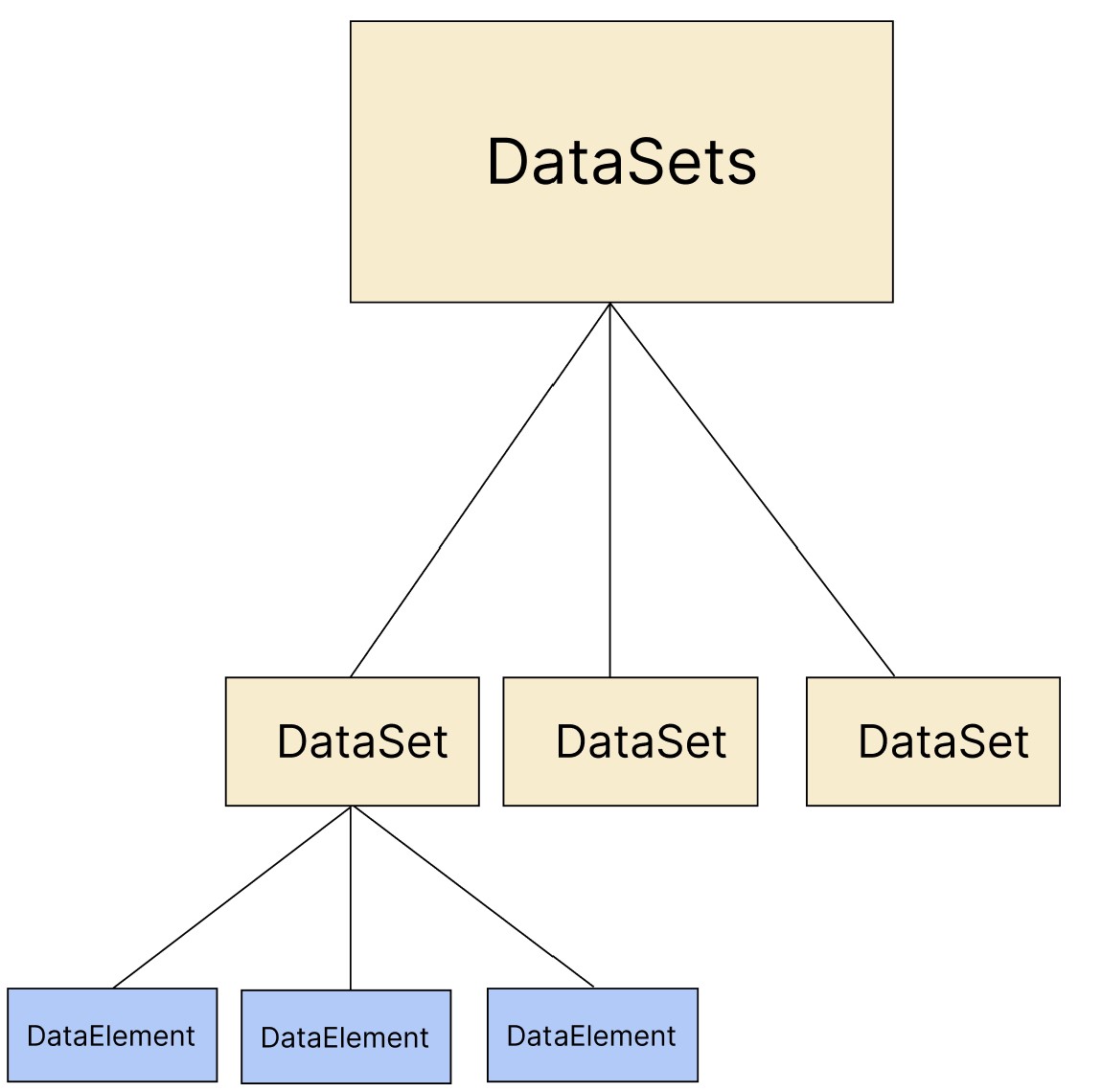
Task
Test query 2 (Collecting dataElement)
Let's run our second API query which should access the 'Life-saving Commodities' dataSet and find it's dataElements.
In test query 2 shown below, you will see that /{dataSetId} has been added to the path. This is a variable which you will set by entering the dataSetId value in Path parameters below.
Loading API module...
Test query 2
Task
{"lastUpdated": "2021-11-22T08:27:52.807","id": "ULowA8V3ucd","href": "https://data.research.dhis2.org/in5320/api/dataSets/ULowA8V3ucd",..."dataSetElements": [{"dataElement": {"id": "BXgDHhPdFVU"},"dataSet": {"id": "ULowA8V3ucd"}}]...}
Let's modify test query 2 to only collect the fields displayName and dataSetElements by specifying these in the fields parameter.
Task
displayName,dataSetElements
If you updated the fields parameter and clicked send, you'll notice that the new response only contains the 'displayName' field and 'dataSetElements' field as we requested. It's good practice to only query for data which you'll need.
By default, sub-collections in the response such as the dataSetElements only includes the id field of each dataElement. It's possible to retrieve more fields of each dataElement by adding [brackets] around the element. All fields can be requested by using a wildcard(*). Let's modify test query 2 to collect all fields from each dataElement in the dataSetElements.
Task
displayName,dataSetElements[dataElement[*]]
In the updated response, we see displayName and the dataSetElements sub-collection. Each dataElements in dataSetElements has all fields included due to our wildcard request (dataElement[*]). Let's modify the fields parameter to only include the id and displayName of each dataElement
Task
displayName,dataSetElements[dataElement[id,displayName]]
In the response body, you'll now see that we've retrieved the displayName and the dataSetElements sub-collection. Each dataElement in dataSetElements only includes the field id and displayName. By searching through these dataElements, you will find elements with displayNames such as Zinc and Injectable antibiotics. The displayName helps us understand what the dataElement represents, in this case it's related to commodities.
We've successfully found dataElements which we want to use when storing dataValues. Copy the id of the Injectable antibiotics dataElement.
Next up we'll find organisationUnits & periods which is also required for storing dataValues
Test query 3 (Collecting organisationUnit)
In this query we will find the organisationUnit Sierra Leone for storing dataValues. Let's begin by finding all organisationUnits, using the path /api/organisationUnits
Loading API module...
Test query 3
Task
In the response, you will see a pager object meaning we've only retrieved one of multiple pages of available organisationUnits. We can find the organisationUnit either:
- Turning off pagination (NOT RECOMMENDED)
- Searching through all pages for Sierra Leone (Might take long time)
- Use the filter parameter for finding Sierra Leone.
We will use option 3 and specify the filter parameter. Let's filter for organisationUnits with display name 'Sierra Leone'
Task
displayName:eq:Sierra Leone
In the response body, you will see that the new result only contains the Sierra Leone organisationUnit. Copy the id of the organisationUnit Sierra Leone.
Next up we will retrieve the Period which is the final remaining element.
Collecting period
While dataElements and organisationUnits are collected through the API, the available periods are available in the DHIS2 api documentation here
We will be using the period september 2022. Copy the period: 202209
Test query 4 (Saving dataValues)
We have now found:
- DataSet id as found in Test Query 1
- DataElement id as found in Test Query 2
- OrganisationUnit id as found in Test Query 3
- Period as found in Collecting period
These findings are sufficient for storing a dataValue. Let's proceed by storing a dataValue.
In test query 4 you see the verb has changed to POST as we're going to post a dataValue to the API. The path is also changed to /api/dataValueSets which is where all dataValues are stored. Post queries doesn't require parameters, however it requires a body including what data to upload to the API.
Loading API module...
Test query 4
The body should be in JSON format. It should be using this schema:
{"dataSet": "ID","period": "PERIOD","orgUnit": "ID","dataValues": [{"dataElement": "ID","value": "XXX"}]}
Let's create a JSON object to send to the API. Copy the schema above, but adjust the values based on id's we've found in previous Test queries:
- Replace dataSet value "ID" to the dataSet id you found in query 1
- Replace period value "PERIOD" to the period you found in Collecting period
- Replace orgUnit value "ID" to the organisationUnit id you found in test query 3
- Replace dataElement value "ID" to the dataElement id you found in test query 2
- Replace value from "XXX" to "42" (This is the dataValue, meaning amount of administrations in our example)
Task
If successful, the response will contain the field message:"Import was successful" which means the request was successful. If it failed, check your request body. Make sure it's identical to the following then click send again:
{"dataSet": "ULowA8V3ucd","period": "202209","orgUnit": "ImspTQPwCqd","dataValues": [{"dataElement": "JIazHXNSnFJ","value": "42"}]}
We have now posted to the API that 42 (dataValue) Injectable antibiotics (dataElement) has been administered in Sierra Leone (OrgUnit) in september 2022 (Period) for the dataSet 'Life-saving Commodities'. Other users of the API can query the API and retrieve this information.
In the last query, we will try to retrieve the dataValue we just posted to the API
Test query 5 (Retrieving dataValues)
Finally, we will try to query the dataValue which we posted in Test query 4. We will still use the path /api/dataValueSets, however the verb is now 'GET' as we want to retrieve data.
Loading API module...
Test query 5
When getting dataValues, we need to specify parameters for what dataValues we want to collect. Let's specify parameters which is identical to the ones we posted in Test Query 4:
- Set the required parameter orgUnit to the orgUnit id we used in testQuery 4
- Set the required parameter dataSet to the dataSet id we used in testQuery 4
- Set the optional parameter period to the period we used in testQuery 4
Task
In the response you should find the sub-collection dataValues which should contain the value we posted in test query 4 (check that dataElement id matches the one we posted in test query 4)
Summary of API queries
We've gone through searching the API, storing values and collecting values. Based on the real-life example on last page where a clerk wanted to count amount of injectable antibiotics administrated last month, we're now able to use the API for storing this aggregate data. Throughout this course, you will have to slightly modify the queries which we've gone through.